
Profile
This guide covers how to manage your user profile, privacy settings, and identity verification in the FiTunza application.
User Profile
To view and update your profile:
- Access the Profile section from the menu.
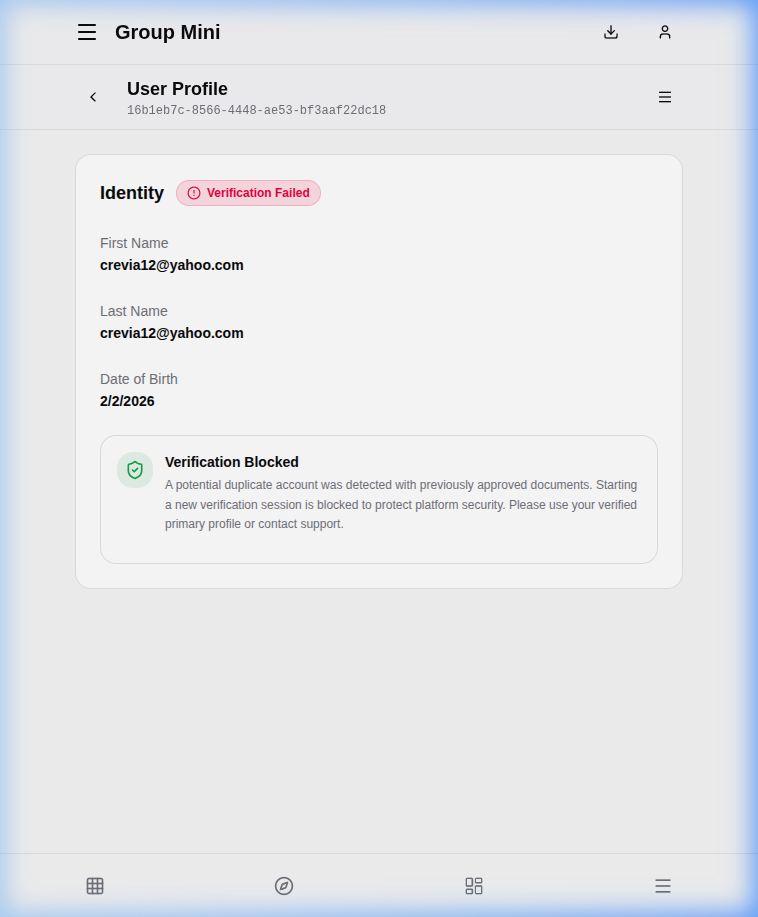
- You can view your personal details such as:
- First Name
- Last Name
- Date of Birth
Identity Verification
The application includes an identity verification process to ensure security and compliance.
- Verification Status: You can see your current status (e.g., "Verification Failed" or "Verified").
- Verification Blocked: In some cases, such as when a duplicate account is detected, verification may be blocked. If this happens, you must contact support to resolve the issue.
- Failed Verification: If your verification fails, you may be allowed to retry after a cooldown period or by providing alternative documents.
Privacy & Visibility
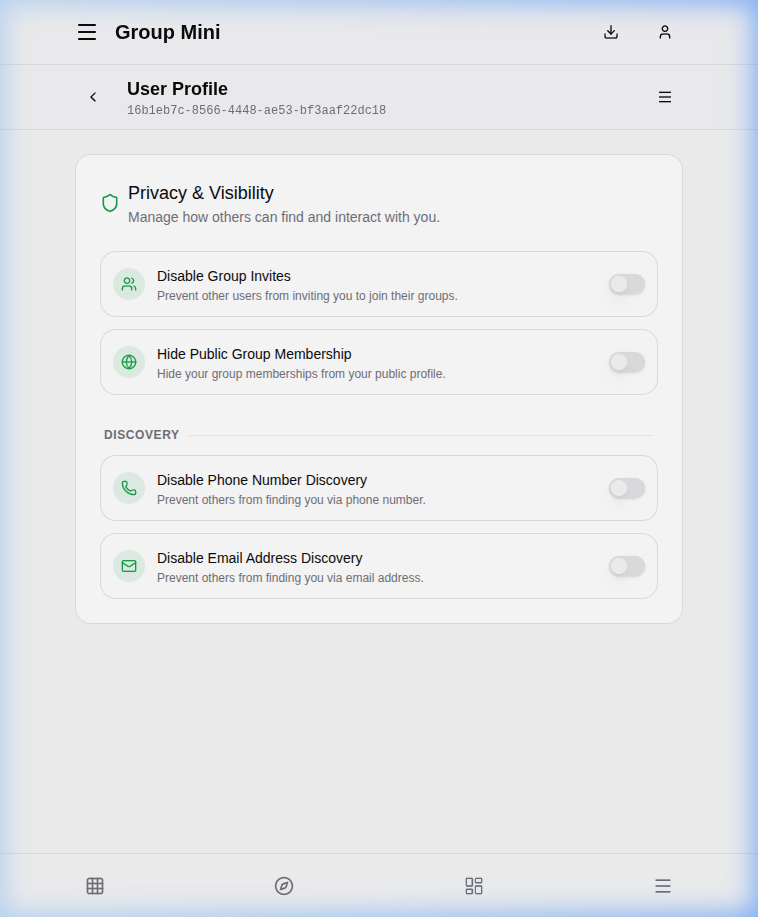
In the settings section of your profile, you can manage how others interact with you:
Privacy
- Disable Group Invites: Toggle to prevent other users from inviting you to join their groups.
- Hide Public Group Membership: Toggle to hide your group memberships from your public profile.
Discovery
- Disable Phone Number Discovery: Prevent others from finding you via your phone number.
- Disable Email Address Discovery: Prevent others from finding you via your email address.
Group Invitations
You can manage your pending group invitations from your profile.
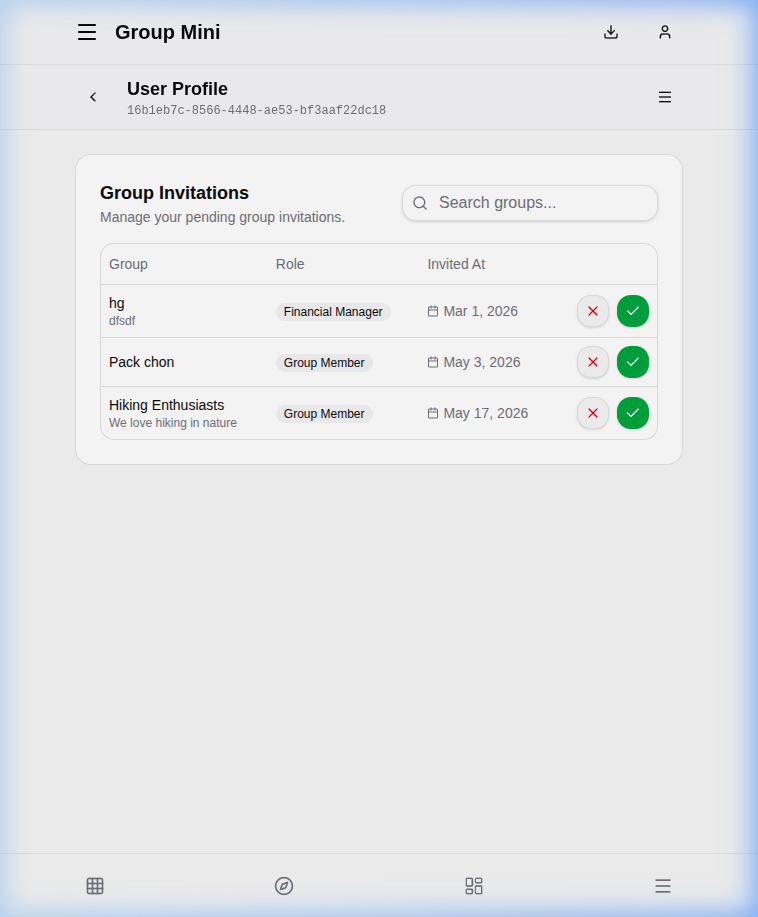
Here you can see:
- Group Name: The name of the group you were invited to.
- Role: The role you will have in the group.
- Invited At: Date of the invitation.
Click the Green Check to accept the invitation or the Red X to reject it.